
"DNS propagation" is the time it takes for the internet to forget the old address of your domain and learn the new one. Most changes are visible within an hour, but a mistake in the records or a long TTL can make it look as if nothing is happening. This guide explains what is normal and how to check every step yourself.
Screenshots come from a real cPanel account with domains and IPs replaced by example values.
How long does DNS propagation take?
| Change | Typical time |
|---|---|
| A / CNAME / MX / TXT record in cPanel Zone Editor | Minutes up to the record's TTL (often 1–4 hours) |
| Nameserver change for .com / .net / .org | 1–24 hours (up to 48 in rare cases) |
| Nameserver change for .pk / .com.pk | Usually a few hours; PKNIC applies changes in batches, so it can take longer than .com |
| New domain registration | Up to a few hours before the domain resolves everywhere |
Different internet providers refresh their caches at different times, which is why the site may open on mobile data but not on your office connection.
Step 1: Confirm the nameservers
Look up the domain with a WHOIS tool (our WHOIS lookup works for .pk too). The nameservers listed there are the ones the world uses. If they still show the old host, the change hasn't been saved at the registrar – log in there and update them to the nameservers from your hosting welcome email.
Step 2: Check the records in Zone Editor
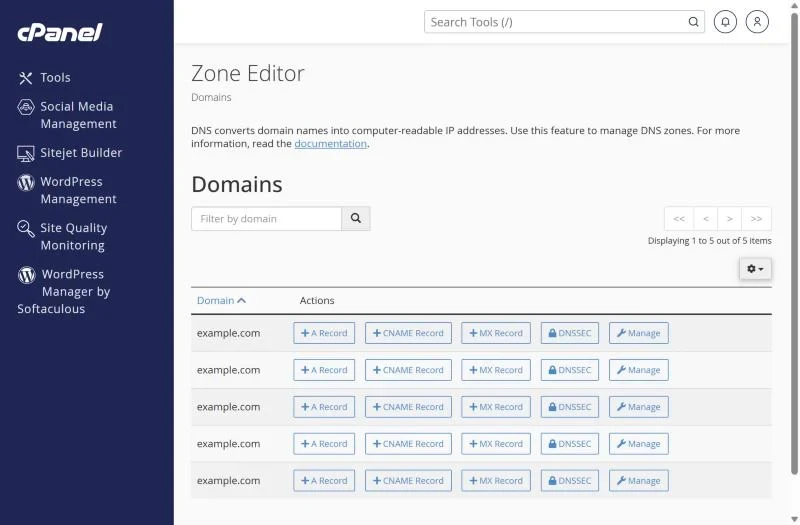
If you use our nameservers, the DNS records live in Domains → Zone Editor. Click Manage next to the domain.
- A record for the domain (
@) andwwwmust point to your hosting IP. - Delete old A records pointing to the previous host – two A records with different IPs make the site switch between servers.
- MX records decide where email goes; CNAME is often used for
www. - SOA and NS records are managed automatically – don't edit them unless support asks you to.
Step 3: Test from outside your network
- Use an online DNS checker to see what resolvers in different countries return.
- On Windows run
nslookup yourdomain.com 8.8.8.8to ask Google's DNS directly. - Clear your own cache:
ipconfig /flushdnson Windows, restart the browser, or try a phone on mobile data.
Step 4: Cloudflare and other DNS providers
If the domain's nameservers are at Cloudflare, changes in cPanel Zone Editor do nothing – edit the records in Cloudflare instead. With Cloudflare's orange-cloud proxy on, a lookup shows Cloudflare's IP, not your server's; that is expected.
Common mistakes we see
- Typing the nameservers with a trailing dot or a space at the registrar.
- Changing nameservers and creating A records at the old DNS host – only the nameserver side counts.
- An AAAA (IPv6) record still pointing to the old host.
- The domain has expired or is on hold – WHOIS shows a status like clientHold. See domain suspended or expired.
Frequently asked questions
Can I speed up DNS propagation?
Not after the change. Before a planned move, lower the TTL of your records to 300 seconds a day in advance; then the switch is almost instant.
Why does the site work for me but not for my client?
Their provider still caches the old address. Give it up to the TTL time, or ask them to flush DNS or try another network.
Moving to XMart Host? Our team handles DNS, files, databases and email in a free migration, so your site doesn't go offline during the switch. See our hosting plans in PKR.