
When email from your domain stops going out, the cause is almost always one of five things: wrong SMTP settings in your mail app, the hourly sending limit, missing SPF/DKIM/DMARC records, a blocked or blacklisted sender, or a full mailbox on the other side. This guide walks through each check in the order our support team uses, so you can find the problem in minutes instead of guessing.
Screenshots in this guide come from a real cPanel account; domain names, IP addresses and usernames have been replaced with example values.
1. Look up the message in Track Delivery first
Before you change anything, find out what the server actually did with the email. In cPanel open Email → Track Delivery, enter the recipient address and click Run Report. Every attempt is listed with its result.
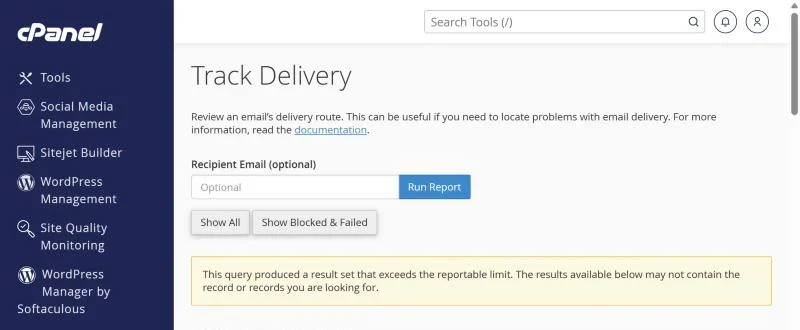
- Green / accepted – the receiving server took the message. If the recipient can't find it, it is in their spam folder or filtered on their side.
- Deferred – the receiving server asked us to try again later (greylisting or a temporary problem). cPanel retries automatically for several days.
- Failed / rejected – open the result text. Messages such as
550 SPF check failed,554 rejected due to spam contentorDomain has exceeded the max emails per hourtell you exactly which section below applies.
If the message does not appear in Track Delivery at all, it never reached the server – the problem is in your mail app or phone (section 2).
2. Check the SMTP settings in your mail app
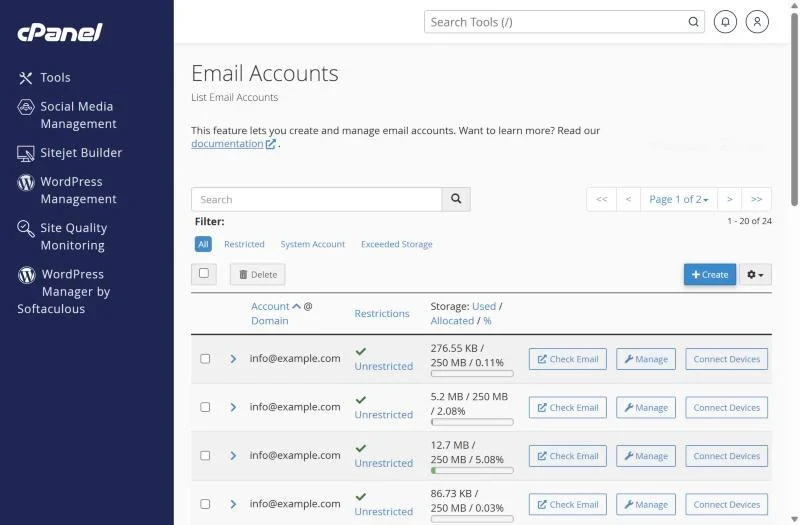
Most "email not sending" tickets turn out to be an Outlook, Thunderbird or phone mail app with the wrong outgoing server. Open Email → Email Accounts, click Connect Devices next to the mailbox and copy the settings shown there.
| Setting | Use this |
|---|---|
| Outgoing server | mail.yourdomain.com (or the server hostname shown in Connect Devices) |
| Port | 465 with SSL/TLS, or 587 with STARTTLS |
| Username | The full email address, e.g. info@yourdomain.com |
| Authentication | Required – same password as the mailbox |
Port 25 is blocked by many Pakistani and international internet providers, so an app set to port 25 can sit in "Sending…" forever. Switch to 465 or 587. If you recently changed the mailbox password, update it in every device – one phone with an old password can also trigger a temporary login block (see our guide on cPanel IP blocks).
3. Hourly sending limit reached
Shared hosting servers limit how many emails one domain can send per hour so that a single hacked contact form can't put the whole server on a blacklist. When you hit the limit, extra messages are held or bounced with "Domain has exceeded the max emails per hour".
- Wait for the hour to pass – held messages are retried.
- Check that a website form or plugin isn't sending spam: a sudden jump in sent mail with strange subjects in Track Delivery usually means a compromised script. Change passwords and update WordPress plugins.
- Send newsletters through a mailing service (Mailchimp, Brevo, Amazon SES) instead of your hosting mailbox.
- If your business genuinely needs more, ask support about the limit for your plan or move to a VPS, where you control it.
4. SPF, DKIM and DMARC – why mail goes to spam or is rejected
Gmail, Outlook and Yahoo now reject or spam-folder mail from domains that can't prove they are allowed to send. cPanel checks this for you under Email → Email Deliverability.
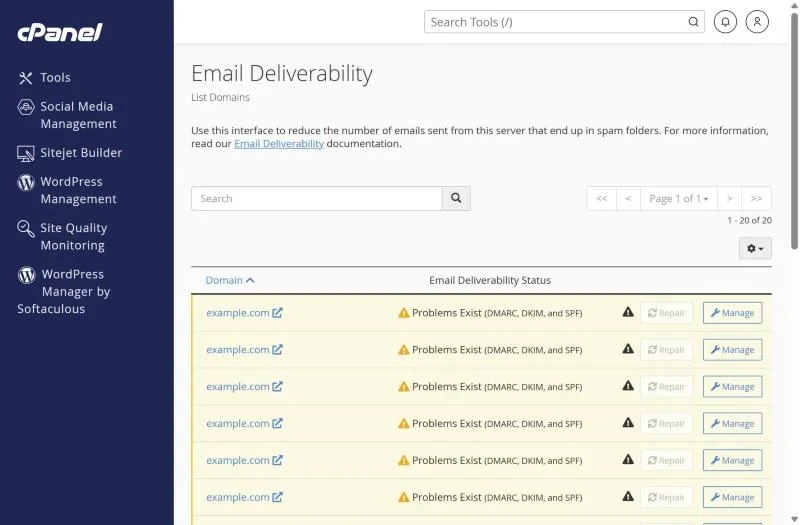
- Open Email Deliverability. Any domain marked Problems Exist needs attention.
- Click Manage. cPanel shows the exact SPF and DKIM records it expects.
- If your domain uses our nameservers, click Repair and the records are added automatically.
- If DNS is hosted elsewhere (Cloudflare, your registrar), copy the suggested records into that DNS panel by hand.
- Add a simple DMARC record as a TXT record on
_dmarc.yourdomain.com:v=DMARC1; p=none; rua=mailto:you@yourdomain.com. Tighten it top=quarantinelater once reports look clean.
Only one SPF record is allowed per domain. If you also send through Google Workspace or a newsletter service, merge them into a single record, for example v=spf1 +a +mx include:_spf.google.com ~all.
5. Rejected because of a blacklist or content
If the bounce mentions Spamhaus, Barracuda or "poor reputation", the sending IP or your domain is listed. Check the address on a blacklist checker such as MXToolbox, then open a ticket with the bounce text – on shared hosting we handle server IP delisting. If the bounce says the content looks like spam, avoid link shorteners, image-only emails and attachments like .zip or .exe, and add a plain-text version to newsletters.
6. The recipient's side
A bounce such as 552 mailbox full or 550 no such user comes from the recipient's server – there is nothing to fix on your hosting. Confirm the address and ask the person to clear space.
Quick checklist
- Message visible in Track Delivery? If not, fix the mail app (port 465/587, full email as username).
- "Max emails per hour"? Wait, find the script sending spam, use a newsletter service.
- Email Deliverability shows problems? Repair SPF and DKIM, add DMARC.
- Blacklist named in the bounce? Send us the bounce text.
Frequently asked questions
Why do my emails go to the Gmail spam folder?
Usually because SPF or DKIM is missing or wrong, or because the message looks promotional. Fix the records in Email Deliverability first; reputation improves within a few days of correct records.
Which port should I use for SMTP in cPanel?
Use 465 (SSL/TLS) or 587 (STARTTLS) with authentication. Avoid port 25 from home or mobile connections.
How many emails can I send per hour on shared hosting?
It depends on the server and plan. The limit protects every customer on the server; for bulk mail use a dedicated email service or a VPS.
Hosting where email just works. XMart Host shared hosting includes cPanel email, automatic SPF/DKIM setup and 24/7 support in Urdu and English. See web hosting in Pakistan or, for team mailboxes, Google Workspace in Pakistan.