
You don't need a VPS to run a Node.js app. Many cPanel servers – including ours, which run CloudLinux – include Setup Node.js App, a tool that runs your app behind the normal web server with its own Node.js version, packages and environment variables. This guide deploys a real app step by step, then covers updates, logs, frameworks such as Express and Next.js, and the limits that tell you when a VPS is the better choice.
Screenshots are from a real cPanel account running a production Node.js app. Domain names and usernames are replaced with example values.
How Node.js works on cPanel
On a VPS you start your app yourself (often with PM2) and put Nginx in front of it. On cPanel, Phusion Passenger does that job: it starts your app when the first request arrives, passes web requests to it, restarts it if it crashes and stops it when it has been idle for a while. You don't open ports or run a process manager – you tell cPanel where the app lives and which file starts it.
Each app gets an isolated virtual environment with the Node.js version you pick, so two apps on one account can use different versions.
Before you start
- Your app's code with a
package.jsonthat lists its dependencies. - A domain or subdomain added in cPanel → Domains (for example
app.example.com), pointed to the server, with SSL issued. - Your app must listen on the port it is given. Passenger supplies one – write
app.listen(process.env.PORT || 3000)and it works both locally and on the server.
Step 1 – Create the application
In cPanel open Setup Node.js App (in the Software section). The list shows your existing apps with their URL, folder, mode and status:
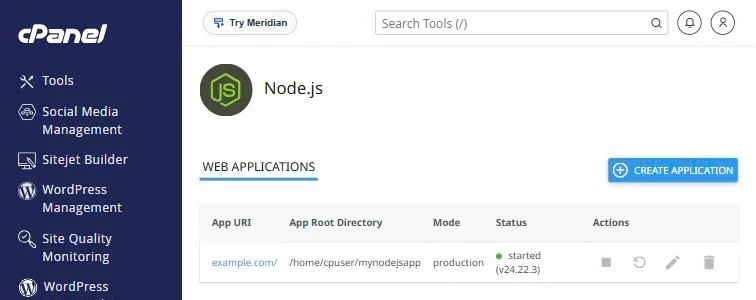
Click Create Application and fill in the form:
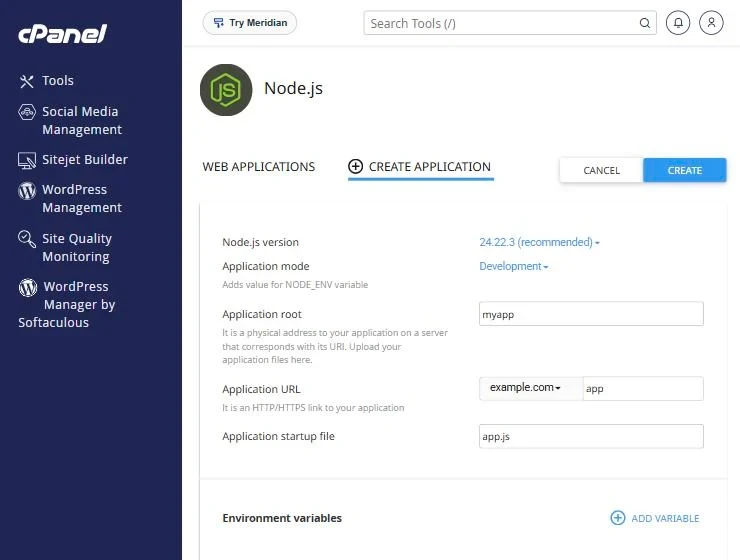
| Field | What it means | Example |
|---|---|---|
| Node.js version | Pick the version your app is built for – the current LTS (Node 22 or 24) for new projects. | 24.x (recommended) |
| Application mode | Sets NODE_ENV. Use Production for live sites – frameworks run faster and hide stack traces. | Production |
| Application root | The folder in your home directory that holds the code. Keep it outside public_html so your source files can't be downloaded. | myapp |
| Application URL | The domain and path where the app answers. Leave the path empty to serve the whole domain. | app.example.com |
| Application startup file | The file Passenger runs, relative to the application root. | app.js |
Click Create. cPanel creates the folder, a placeholder startup file and the virtual environment. Visiting the URL now shows "It works! NodeJS" – the placeholder.
Step 2 – Upload your code
Upload the project into the application root – with File Manager (upload a ZIP and extract it), SFTP, or Git (cPanel → Git Version Control can clone a repository into the folder).
Important: do not upload a node_modules folder. On CloudLinux the app's node_modules is a link into the virtual environment; an uploaded folder with the same name blocks the package install. Delete it if it came with your ZIP.
A minimal Express app for testing looks like this:
const express = require("express");
const app = express();

app.get("/", (req, res) => res.send("Hello from cPanel + Node.js"));

app.listen(process.env.PORT || 3000);
Step 3 – Install packages
Go back to Setup Node.js App and click the edit (pencil) icon of your app. With package.json in the application root you will see a Run NPM Install button – click it and wait for "completed successfully". It installs the dependencies into the app's virtual environment.
Prefer the command line? The app page shows a one-line command at the top that enters the app's virtual environment. Copy it into cPanel → Terminal (or an SSH session); after that node and npm use the app's version and folder, so you can run npm install, npm run build or a database migration exactly as on your own computer.
Step 4 – Environment variables
Secrets such as database passwords and API keys don't belong in your code. On the app's edit page use Add Variable to define them – for example DATABASE_URL or SESSION_SECRET – then click Save. Your code reads them from process.env. A database for the app can be created with cPanel's Database Wizard (MySQL/MariaDB on localhost).
Step 5 – Start or restart
Click Restart on the app's page. Open your URL – you should now see your app instead of the placeholder. Repeat the restart every time you change code or variables; Passenger keeps the old code in memory until then.
A restart can also be triggered from the command line or a deploy script by creating or touching the file tmp/restart.txt inside the application root – handy after a git pull.
Deploying updates
- Upload or pull the new code.
- If
package.jsonchanged, click Run NPM Install again. - If the framework needs a build step (Next.js, NestJS, TypeScript), run it inside the virtual environment.
- Restart the app.
Express, Next.js and other frameworks
Express, Fastify, Koa, NestJS
Point the startup file at the file that calls listen() – e.g. app.js, server.js or for NestJS the built dist/main.js.
Next.js
Run npm run build first, then use a small custom server.js as the startup file that loads Next in production mode and listens on process.env.PORT (Next.js documents this as a "custom server"). Builds of large projects need a lot of memory – if a build is killed on shared hosting, build on your own computer or in CI and upload the .next folder. Our own website runs on Next.js this way on a cPanel server.
React, Vue or Angular front-ends only
A front-end that builds to static files doesn't need Node.js on the server at all – upload the contents of the build or dist folder to public_html. Faster and simpler.
Troubleshooting
"It works! NodeJS" still shows
The startup file is still the placeholder, or the app wasn't restarted. Check the startup file name and click Restart.
503 Service Unavailable / "Incomplete response received from application"
The app crashed during start-up. Open the log: the app's page shows the Passenger log file path (often stderr.log in the application root). The usual causes are a missing package (run NPM Install), a missing environment variable, or a syntax error.
"Cannot find module …"
Packages aren't installed in the virtual environment – or an uploaded node_modules folder is in the way. Delete it, run NPM Install, restart.
The app is slow on the first request
Passenger stopped the idle app and is starting it again. Busy sites don't notice; for low-traffic apps an uptime monitor that requests the page every few minutes keeps it warm.
Process killed / out of memory
Shared hosting accounts have CPU, memory and process limits. Check cPanel → Resource Usage – see cPanel resource limits.
When a VPS is the better choice
| cPanel Node.js is fine for | Choose a VPS for |
|---|---|
| APIs, dashboards, business apps, Next.js sites | Apps that must run 24/7 background workers or queues |
| Low to medium traffic | Heavy real-time WebSocket traffic |
| Apps that use MySQL/MariaDB | Custom services: Redis, MongoDB, Docker, custom ports |
| Teams that want cPanel email, DNS and backups in one place | Large builds, root access, PM2 or your own Nginx config |
Frequently asked questions
Can I run several Node.js apps on one cPanel account?
Yes – create one application per domain, subdomain or path, each with its own folder, version and variables.
Which Node.js versions are available?
It depends on the server; ours offer current LTS releases, including Node.js 24, alongside older versions for legacy apps.
Can I use PM2 on cPanel?
You don't need it – Passenger already starts, restarts and monitors the app. PM2 is for VPS setups.
Do I need to open a port?
No. Passenger connects the web server to your app internally; just listen on process.env.PORT.
Node.js hosting with cPanel. XMart Host cPanel hosting includes Setup Node.js App with current Node.js versions, free SSL and daily backups. Need root access or 24/7 workers? Choose a VPS.