
An email that arrives three hours late or comes back with "Mail delivery failed" is frustrating, but the bounce message almost always names the cause. This guide shows how to read it and fix the common problems: wrong MX records, greylisting, mail loops and full mailboxes.
Screenshots come from a real cPanel account with the domain, IP and username replaced by example values.
Step 1: Read the bounce code
Every bounce contains a three-digit SMTP code. The first digit tells you whether the problem is temporary or permanent.
| Code | Meaning | What to do |
|---|---|---|
| 421 / 450 / 451 | Temporary – try later, greylisting or rate limit | Nothing; the server retries. Delays of 15–60 minutes are normal. |
| 452 / 552 | Recipient mailbox or server full | The recipient must free space. |
| 550 / 551 / 553 | Address unknown, rejected by policy or SPF | Check the address; fix SPF/DKIM (see our email sending guide). |
| 554 | Rejected as spam or blacklisted | Check content and blacklists; send us the full bounce. |
Step 2: Follow the message in Track Delivery
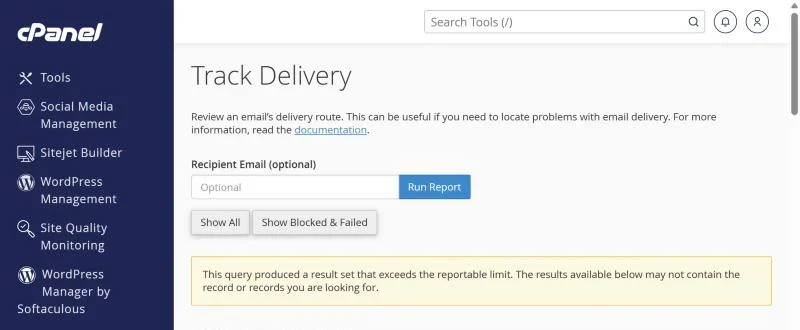
Open Email → Track Delivery and search for the sender or recipient. Deferred messages show the reason the other server gave and when the next retry happens.
Many Gmail, Outlook and corporate servers use greylisting: the first message from a new sender is refused once and accepted on the retry a few minutes later. That is why the very first email to a new contact is often delayed while later ones arrive instantly.
Step 3: Incoming mail delayed or missing – check MX records
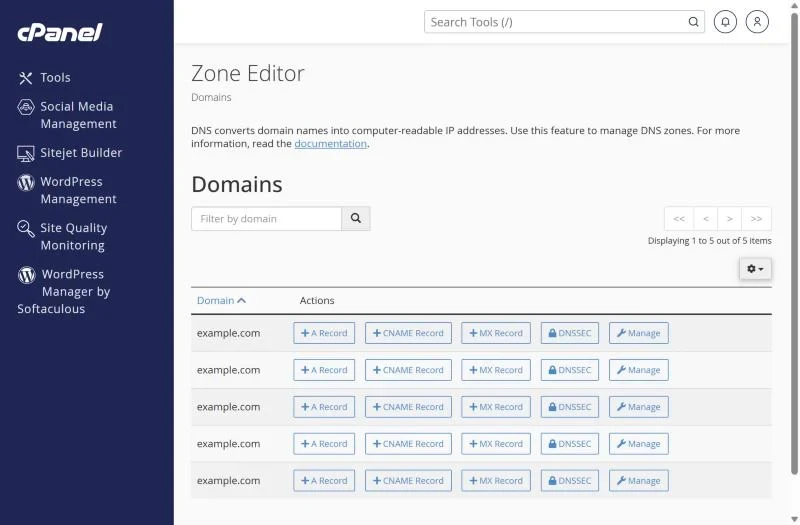
If you are not receiving mail, check where your domain's MX record points. Open Domains → Zone Editor and click Manage next to the domain.
- For mail hosted in cPanel the MX record should point to
mail.yourdomain.com(or the domain itself) with priority 0 or 10. - For Google Workspace or Titan, the MX records must point to their servers and cPanel's Email Routing must be set to Remote Mail Exchanger. If routing stays on "Local", mail sent from other accounts on the same server is delivered into the unused cPanel mailbox and looks "lost".
- After changing MX records allow up to a few hours for DNS caches to expire – see DNS propagation.
Step 4: "Too many Received headers – suspected mail loop"
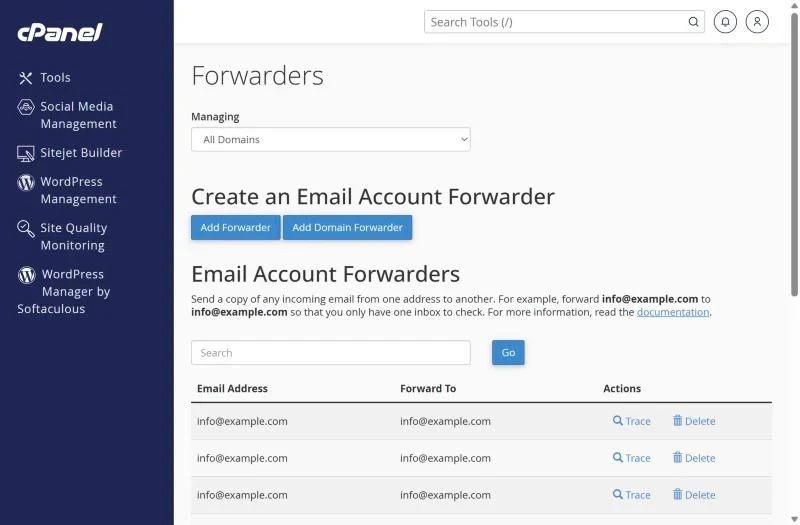
This bounce means a message is being forwarded in a circle: A forwards to B and B forwards back to A, or a forwarder points to an address on a domain whose MX points back to the same server. Open Email → Forwarders and remove the circular rule.
Also avoid forwarding everything to Gmail: when spam is forwarded, Gmail blames your server and may start rejecting all forwarded mail. Use the mailbox directly or fetch it with POP3 from Gmail instead.
Step 5: Sent mail delayed on our side
If Track Delivery shows your outgoing messages waiting for a long time, the usual reasons are the hourly sending limit, a temporary block from the recipient's provider, or a script sending a large burst. Send the message details from Track Delivery to support and we will check the server queue.
Frequently asked questions
Why does my first email to a new contact take 30 minutes?
Greylisting. The receiving server rejects the first attempt to filter spam bots, and our server retries automatically.
What does "550 No such user here" mean?
The address does not exist on the receiving server. Check spelling and whether the mailbox was deleted.
Can I stop bounces from reaching the sender?
Set a default address under Email → Default Address. Choosing "Discard" stops backscatter spam but means typos to your domain are silently lost.
Reliable business email. Need mailboxes that stay out of spam folders? Compare Titan Email and Google Workspace in Pakistan, or host mail with your website on our cPanel hosting.