
A parked domain – called an alias in current cPanel versions – is a second domain that shows the same website as your main domain. For example, yourbrand.pk showing the same site as yourbrand.com. When it goes wrong you usually see one of four things: the registrar's "this domain is parked" page, the server's default page, the wrong website, or no redirect at all. Here is how to fix each one.
Screenshots come from a real cPanel account; domains and IPs are replaced by example values.
How aliases work in cPanel today
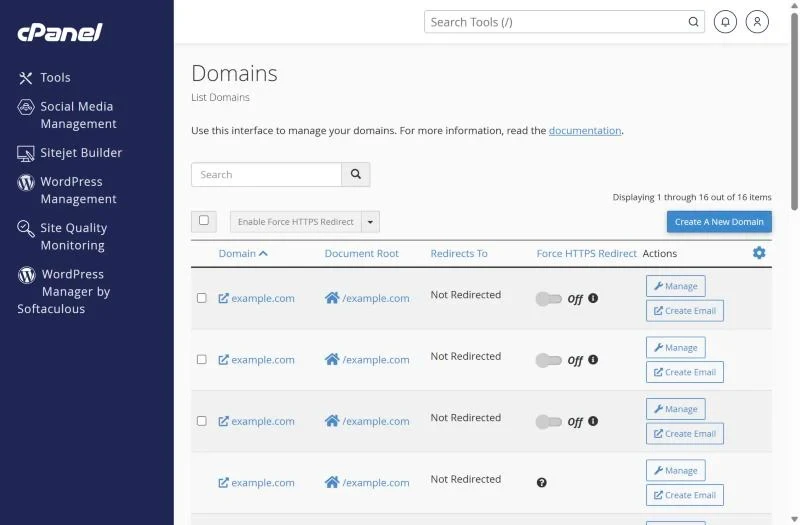
Since cPanel 2020 there is no separate "Parked Domains" or "Aliases" screen in the Jupiter theme – everything is under Domains → Domains. When you create a new domain, leave "Share document root" ticked and it becomes an alias of the main site.
Problem 1: The registrar's "domain parked" page appears
The domain is not pointing to your hosting yet. DNS for the alias must point to the same server:
- Option A: set the domain's nameservers at the registrar to the nameservers in your hosting welcome email.
- Option B: keep the registrar's DNS and create an A record for
@andwwwpointing to your hosting IP (shown in cPanel under General Information).
Changes take from a few minutes to a few hours – see why DNS propagation can be slow.
Problem 2: The server's default page or "Domain not configured"
DNS reaches the server but cPanel doesn't know the domain. Add it under Domains → Create A New Domain. If cPanel says the domain already exists on another account, it is still attached to an old account on the same server – open a support ticket and we will release it.
Problem 3: The alias shows a different website
The domain was added with its own document root (an addon domain) instead of sharing the main site's folder. In the Domains list check the Document Root column: an alias must show the same folder as the main domain, usually /public_html. Remove the domain and add it again with "Share document root" ticked.
WordPress sites add one more twist: WordPress always redirects to the address set in Settings → General. That is usually what you want, but if you need the alias to show its own address, use a multilingual or domain-mapping plugin instead.
Problem 4: The alias should redirect but doesn't
Use Domains → Redirects to send the alias to the main domain with a 301 redirect – better for Google, because only one address gets indexed.
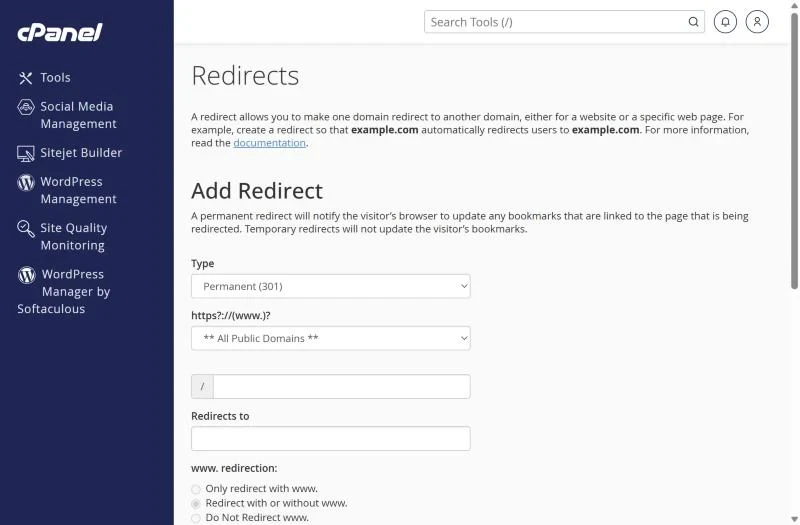
- Type: Permanent (301).
- Choose the alias domain in the drop-down.
- Leave the path empty and enter the full target, e.g.
https://www.yourdomain.com/. - Choose "Redirect with or without www".
If the redirect does nothing, an older rule in .htaccess or a WordPress plugin probably runs first. Look for RewriteRule lines at the top of public_html/.htaccess and remove duplicates.
Problem 5: SSL warning on the alias
AutoSSL issues a certificate for the alias only once its DNS points to the server. After fixing DNS, run AutoSSL again (or ask support) – details in our SSL guide.
Checking DNS records for the alias
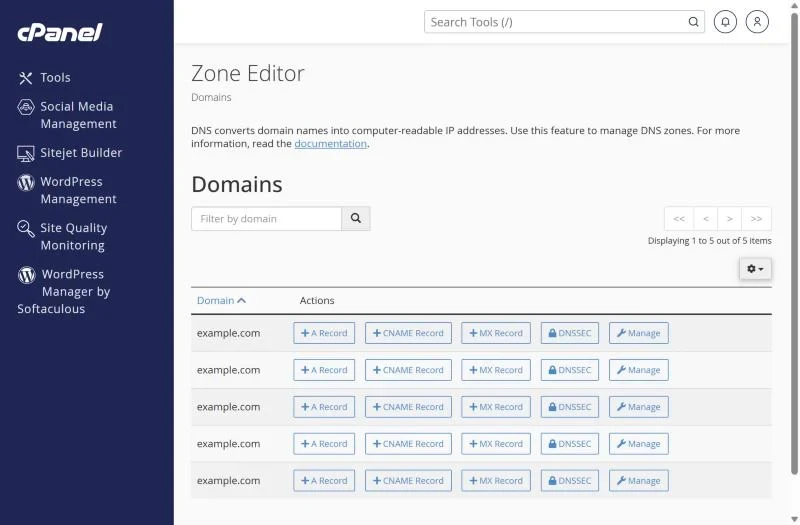
In Zone Editor → Manage make sure the alias has an A record for the domain and for www (or a CNAME from www to the domain), and that no old A records point to a previous host.
Frequently asked questions
Is a parked domain bad for SEO?
Showing the same content on two domains creates duplicates. Use a 301 redirect to the main domain, or set a canonical URL.
Can a parked domain have its own email?
Yes. Email accounts can be created for every domain in the account, including aliases.
Own several domains? Register .pk and international domains with us and point them to your XMart Host hosting – our team sets up aliases and redirects for you.